

Most MDCAT students do not fail for lack of effort. They lose marks because some chapters never got their turn: too much time on favourite topics, too little revision, and a last month spent panicking instead of practising. A good study plan fixes that by deciding, in advance, what you will study every single day until the exam.
ePrepare builds that plan for you. You answer a few questions (how many days you have, how long you can study each day, which subjects to include) and the app lays out every chapter of the syllabus, day by day, with lectures, MCQs, revision, weekly tests and full-length papers at the end. This guide shows you exactly how to set it up, what each option means, and how to use the plan every day.
Short version: open Study plan, choose your number of days and daily hours, keep the default study order, press Create my plan, then simply do the tasks under "Today" every day. If you miss a day, press Reschedule missed.
Before you start
You need your ePrepare username and password (sent to you on WhatsApp when your account was activated). If you have not set your exam date yet, open Exam goal from the menu and add it first. The plan can then count the days to your exam for you.
Set aside five minutes. The settings matter, so read each step before you press create.
Step 1: Open the study plan
On your dashboard, find the card called Plan your preparation and press Create study plan (marked 1 below). You can also open Study plan from the menu at any time.

Step 2: Choose how many days you have
The first question is the most important one: How many days do you have? (2). You can pick:
- Until my exam: appears when your exam date is saved, and uses exactly the days you have left.
- 30, 60, 100 or 150 days: ready-made lengths.
- Custom: any length from 7 to 365 days.
Then choose when the plan should Start (3): today or tomorrow. If it is already evening, start tomorrow so day one is a full day.

Which length should you choose? If you have four months or more, choose "Until my exam" and you will cover the whole syllabus at a calm pace, with time for revision. With two to three months, the plan is tighter, so give it more hours each day. With only a month left, keep your daily time high and treat the plan as intensive revision.
Step 3: Subjects, daily study time and order
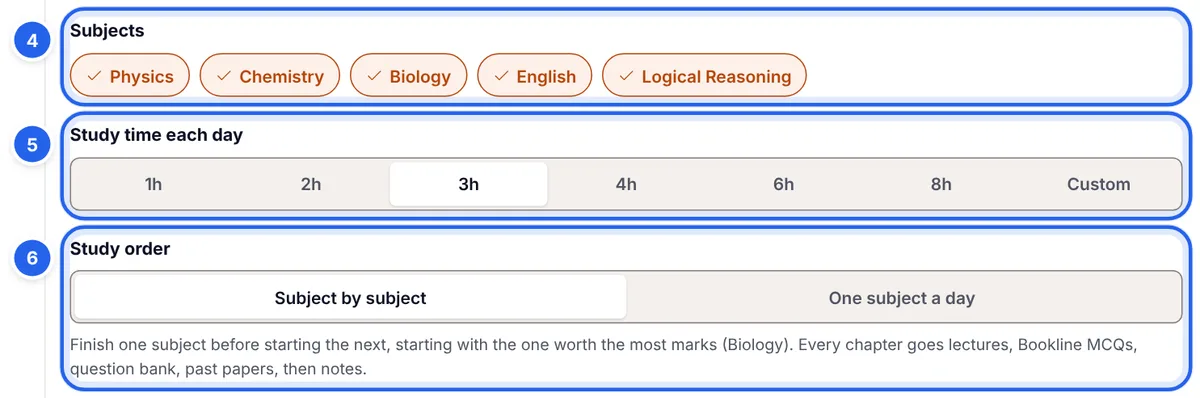
Subjects (4): all MDCAT subjects are selected. Leave them on unless you have truly finished a subject and only want to revise the others.
Study time each day (5): choose 1, 2, 3, 4, 6 or 8 hours, or set your own. Be honest. A plan built on three real hours beats a plan built on eight hours you will not manage. The app uses this number to decide how much work goes into each day: the length of each lecture, and roughly a minute per MCQ.
Study order (6) decides how subjects share your days:
- Subject by subject finishes one subject before starting the next, beginning with the one that carries the most marks (Biology).
- One subject a day rotates subjects, so every subject moves forward each week.
Not sure which order? Choose "Subject by subject" if you like finishing what you start and want Biology covered early. Choose "One subject a day" if you get bored with one subject or are weak in all of them and want steady progress everywhere.
Step 4: Lectures, what to include and rest days
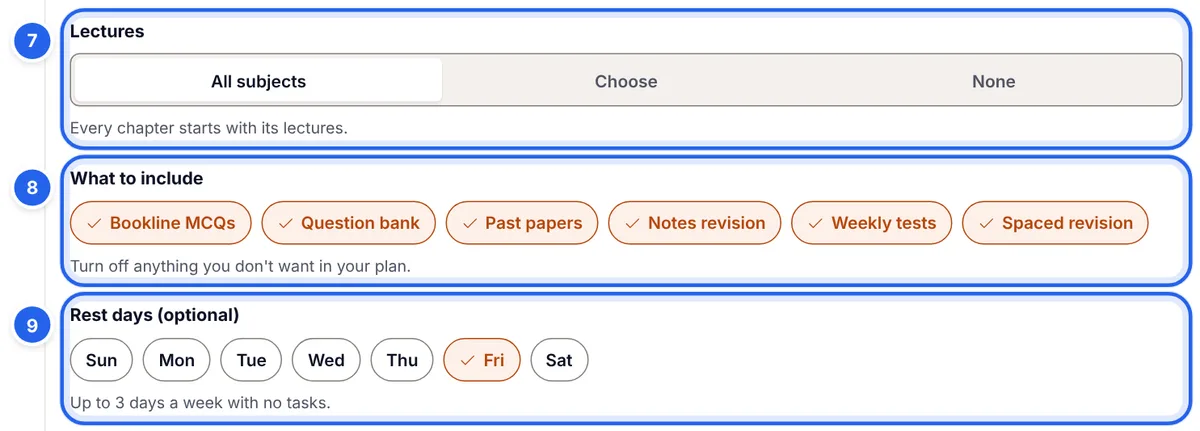
Lectures (7): with "All subjects", every chapter starts with its video lectures. Choose "Choose" to keep lectures only for some subjects, or "None" if you have already watched them or prefer to read from your textbook; the plan then goes straight to MCQs. On the Basic package, which does not include lectures, each chapter starts with reading it from your textbook.
What to include (8): Bookline MCQs, Question bank, Past papers, Notes revision, Weekly tests and Spaced revision are all on. You can switch off what you do not want, but keep at least lectures or one kind of MCQs. For most students, leaving everything on is the right choice.
Rest days (9): optional. Pick up to three days a week with no tasks. Many students keep Friday or Sunday free; one rest day a week is a healthy start.
Step 5: Check the preview and create your plan
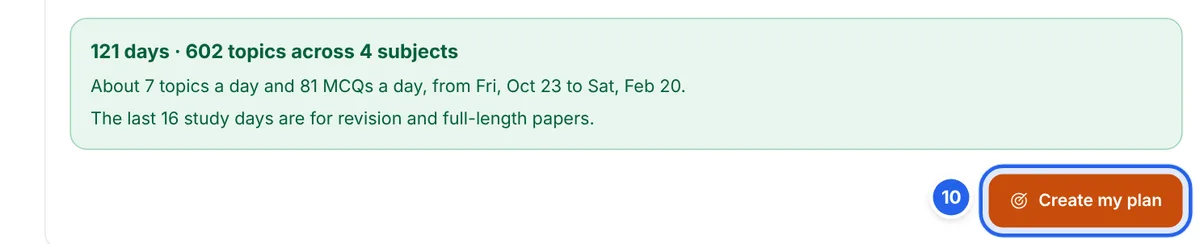
Before you create anything, read the green summary. It tells you how many days and topics the plan covers, about how many topics and MCQs you will do each day, the exact start and end dates, and how many days at the end are kept for revision and full-length papers.
If the daily MCQ number looks too high, go back to Step 3 and add an hour, or choose more days. When it looks right, press Create my plan (10).
How ePrepare builds your plan
Knowing the logic helps you trust the plan and follow it. Every chapter goes through the same order:
- Lectures for the chapter, one task per video, in course order.
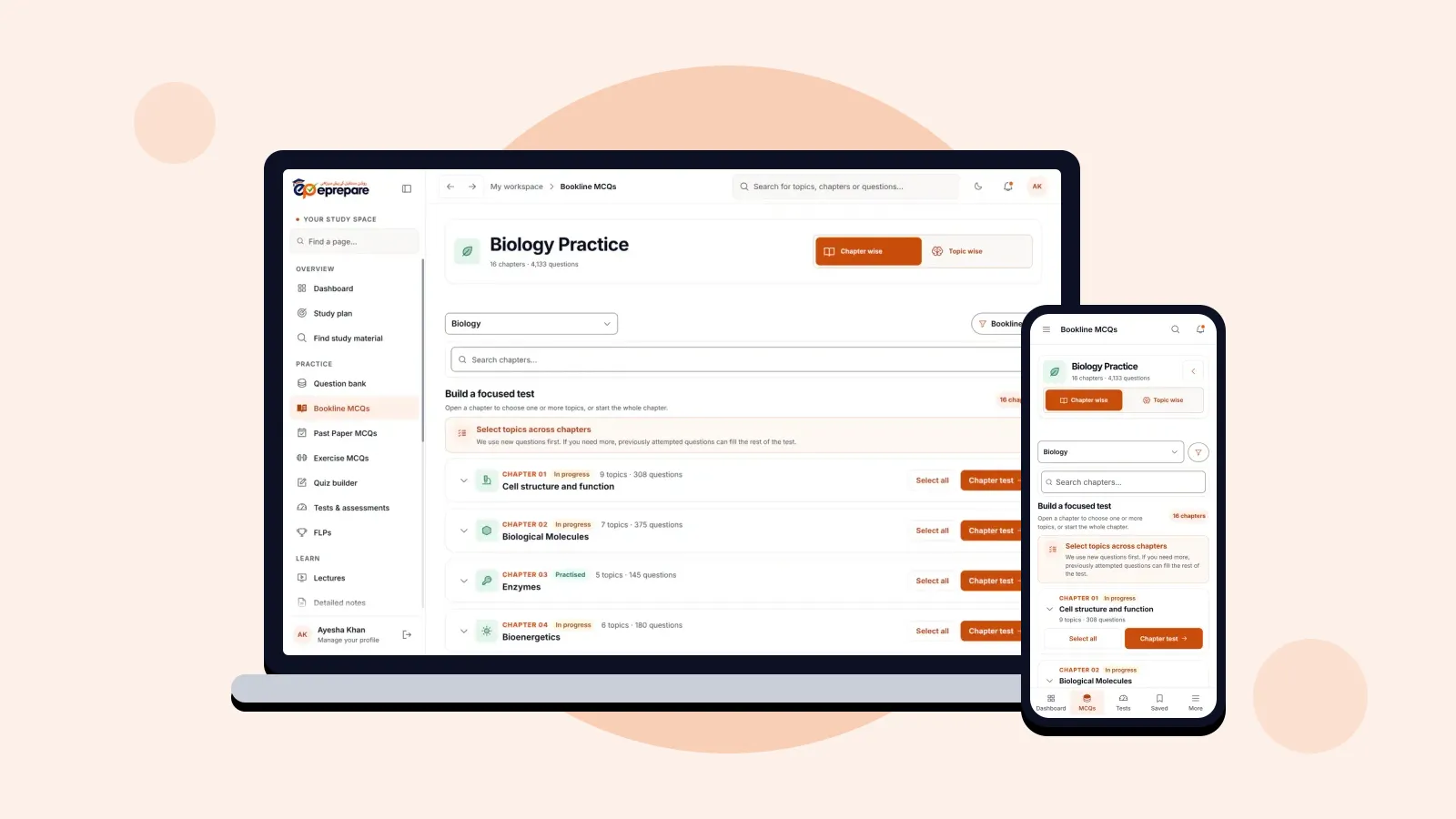
- Bookline MCQs on all its topics, so you practise the textbook line by line.
- Question bank MCQs on the same topics, for concept building.
- Past paper MCQs for the chapter.
- Notes revision: a read-through of the whole chapter.
On top of that, topics you have learned come back for quick revision 3 and 10 study days later, every seventh study day ends with a weekly test on that week's work, and the last part of the plan (about 15% of your study days) is kept for subject revision and full-length papers.
How it helps: nothing is left to chance. Every chapter gets learned, practised from three angles and revised twice, and you reach the exam with full papers already behind you.
Using your plan every day
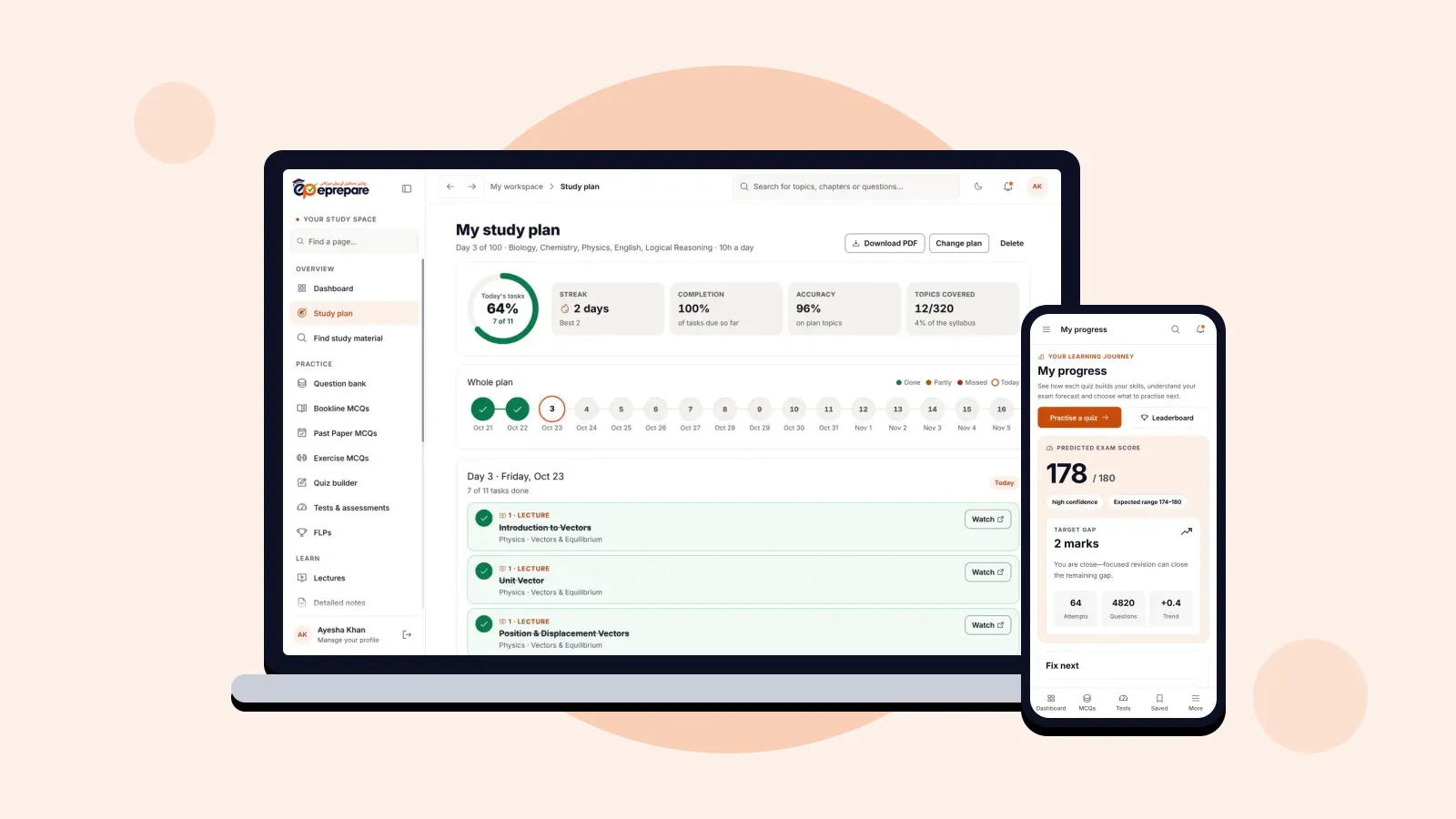
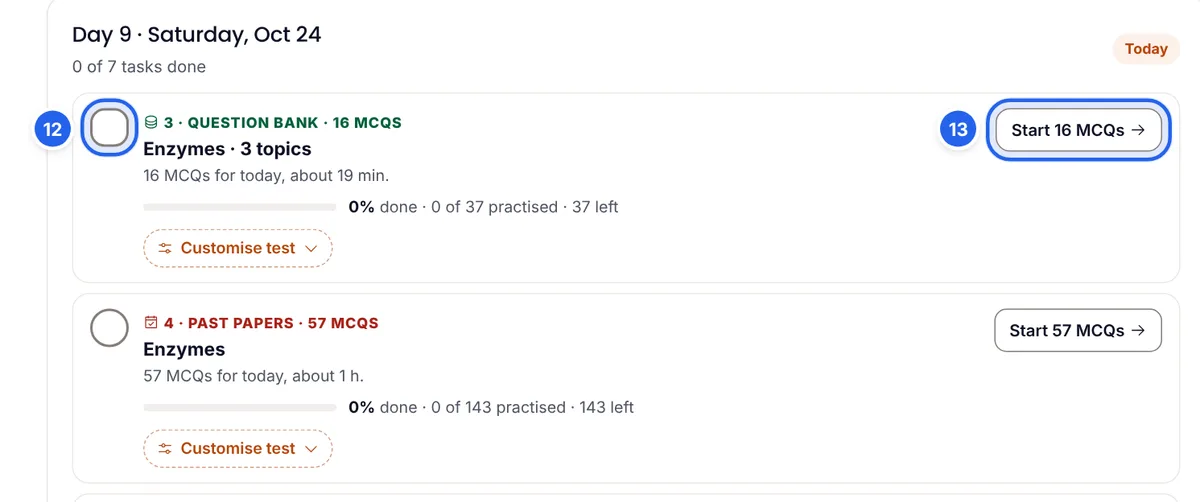
Open Study plan each morning. Under today's date you will see your tasks, for example a Question bank set, a Past papers set and a notes revision. Each task says how many MCQs it has and about how long it takes.
Press the button on a task, such as Start 16 MCQs (13), and the app opens exactly those questions. You do not need to search for anything. MCQ tasks tick themselves as you answer, and a lecture is ticked when you open it. For anything you did elsewhere, tap the circle (12) to tick it yourself. "Customise test" lets you pick which of the day's topics to include and how many MCQs to do.
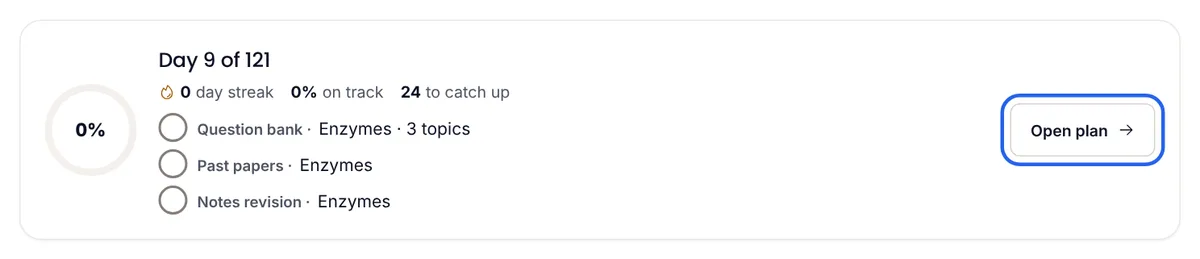
Your dashboard shows the same day at a glance: today's tasks, your streak and how many tasks are waiting. Press Open plan to jump in.
Track your progress
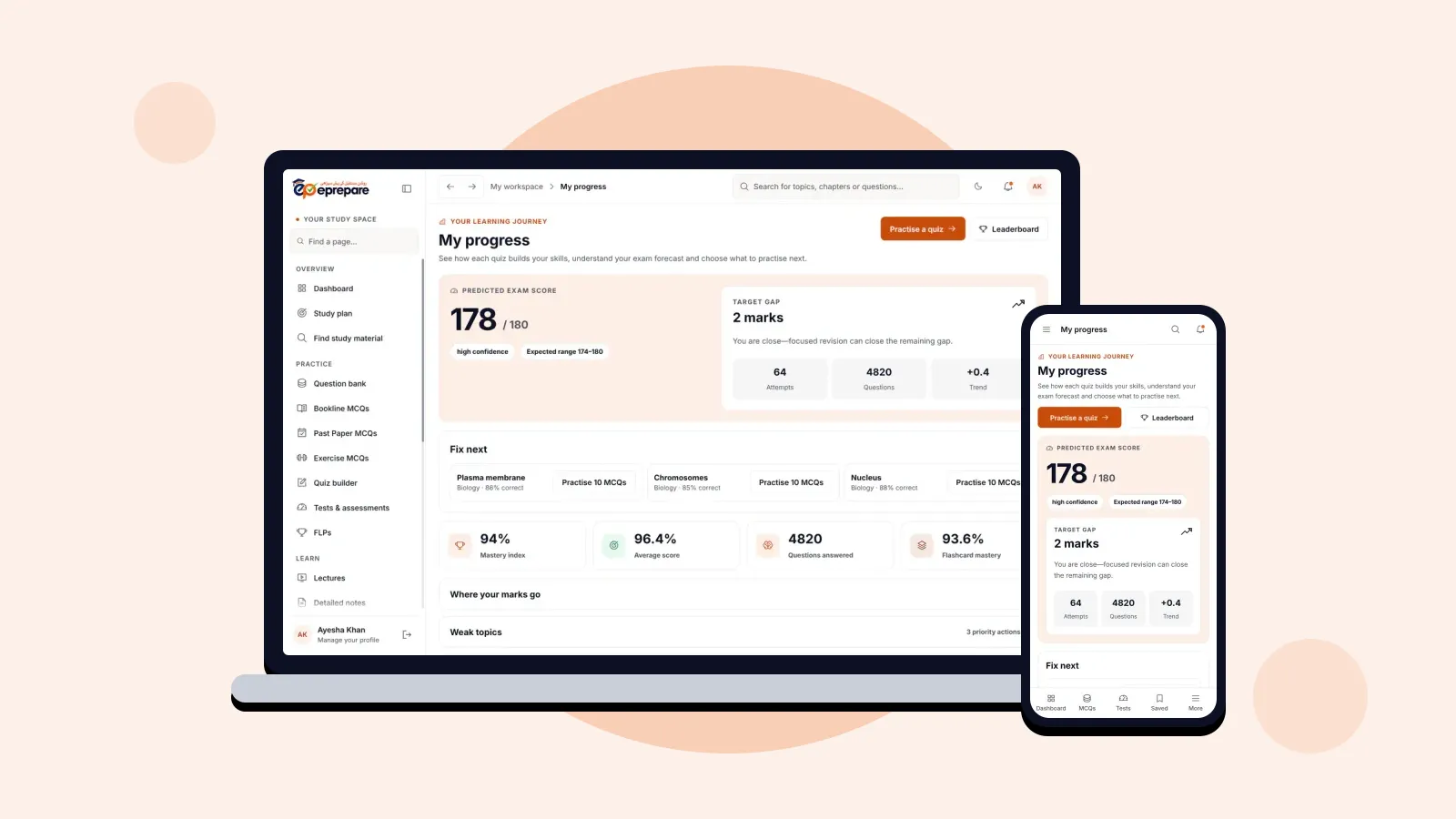
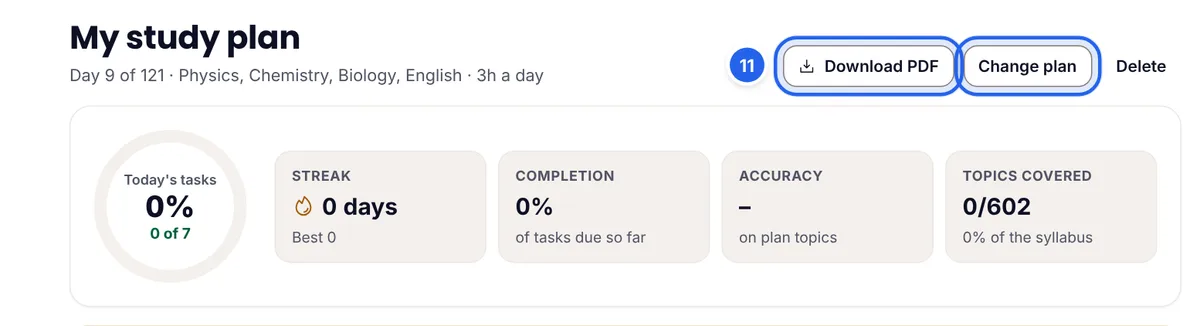
The top of the plan shows how today is going and how the whole plan is going:
- Today's tasks: the ring fills as you finish today's work.
- Streak: the days in a row you completed your tasks, with your best streak.
- Completion: the share of tasks due so far that you have done.
- Accuracy: how well you are answering on your plan's topics.
- Topics covered: how much of the syllabus you have practised.
Need the plan on paper or on your wall? Press Download PDF (11). Change plan lets you build a new one if your situation changes.
Missed a day? Reschedule in one tap
It happens: a family event, a test at college, a day you were unwell. The Whole plan strip shows every day in colour: green for done, amber for partly done, red for missed and an orange ring for today, with your rest days marked.

When tasks from earlier days are still open, a yellow note appears. You have two choices: tick off the tasks you did manage from the day list, or press Reschedule missed (14). The topics you have not studied yet are then spread over your remaining days. Earlier days stay as they are, so you can still tick them later.

How it helps: one bad day no longer breaks your whole timetable. You stay on track for the full syllabus without having to redo your plan.
Your plan on your phone
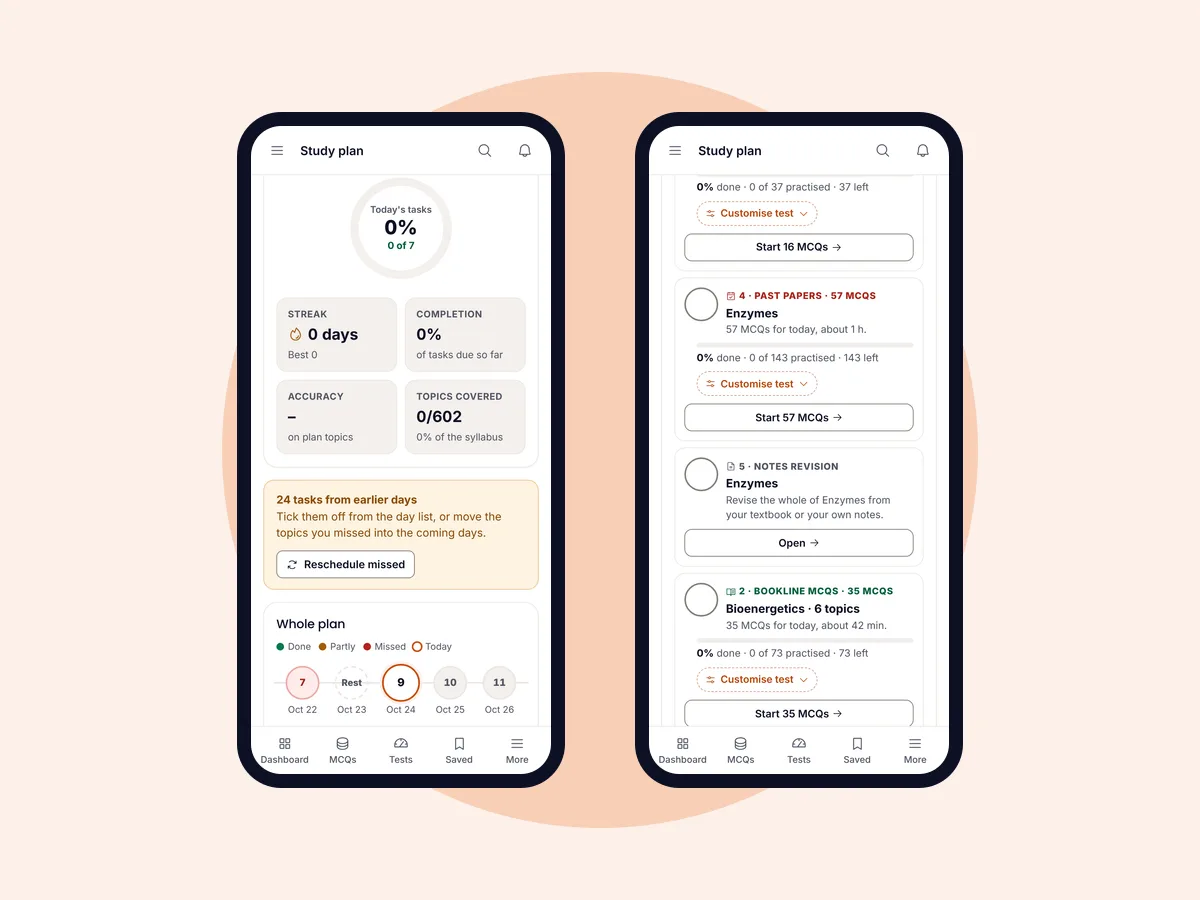
Everything works the same on your phone: your progress and the whole plan on one screen, and today's tasks with their Start buttons on the next. Your progress stays in one account, so you can start a set on your laptop and finish it on your phone.
Tips to stick to your plan
- Do today's tasks first. Before extra videos or random MCQs, finish the plan. It already holds the right work for today.
- Keep your hours realistic. If you keep falling behind, change the plan to more days or fewer hours rather than forcing it.
- Reschedule weekly, not daily. A small backlog is fine; clear it with Reschedule missed once a week.
- Read every explanation you get wrong. Wrong answers are saved in Wrong MCQs and come back in your revision days.
- Protect your rest day. Rest is part of the plan, and a fresh mind learns faster.
- Do not skip the weekly test. It is the fastest way to find out what did not stick.
Watch: create your study plan
Prefer to see it? This short video walks through creating a plan from start to finish.
Frequently asked questions
Can I change my plan later?
Yes. Press Change plan and build a new one. The new plan starts fresh: ticked tasks and the streak of your old plan are not carried over, so change it only when you really need to, for example when your exam date changes.
Do I have to tick every task myself?
No. MCQ tasks tick themselves as you answer the questions, and lectures are ticked when you open them. You only tick tasks you did outside the app, such as reading from your textbook.
I have already watched the lectures. What should I choose?
Choose "None" under Lectures, or "Choose" and keep only the subjects you still need. Your plan will go straight to MCQs for the rest.
Is the study plan included in every package?
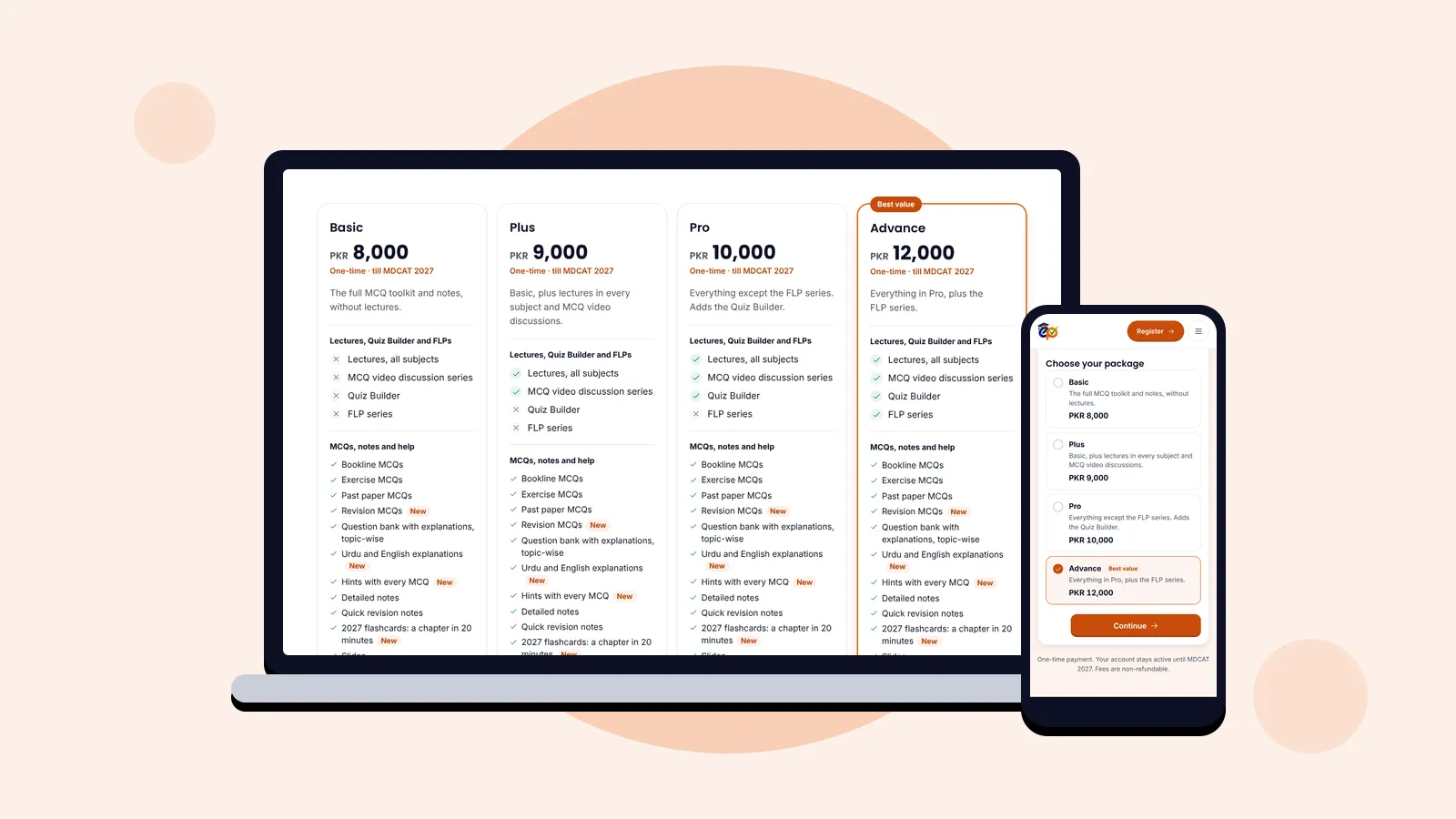
Yes. The study plan, score predictor and other planning tools come with every ePrepare package. Lectures appear in your plan on the Plus, Pro and Advance packages. Compare the packages.
Can I print my plan?
Yes. Press Download PDF on your plan and print it or keep it on your phone.
Start today
The best study plan is the one you start. Open Study plan, follow the five steps above, and let the app tell you exactly what to do each morning until MDCAT. New to ePrepare? Register here, and read about every ePrepare feature and how it helps.