

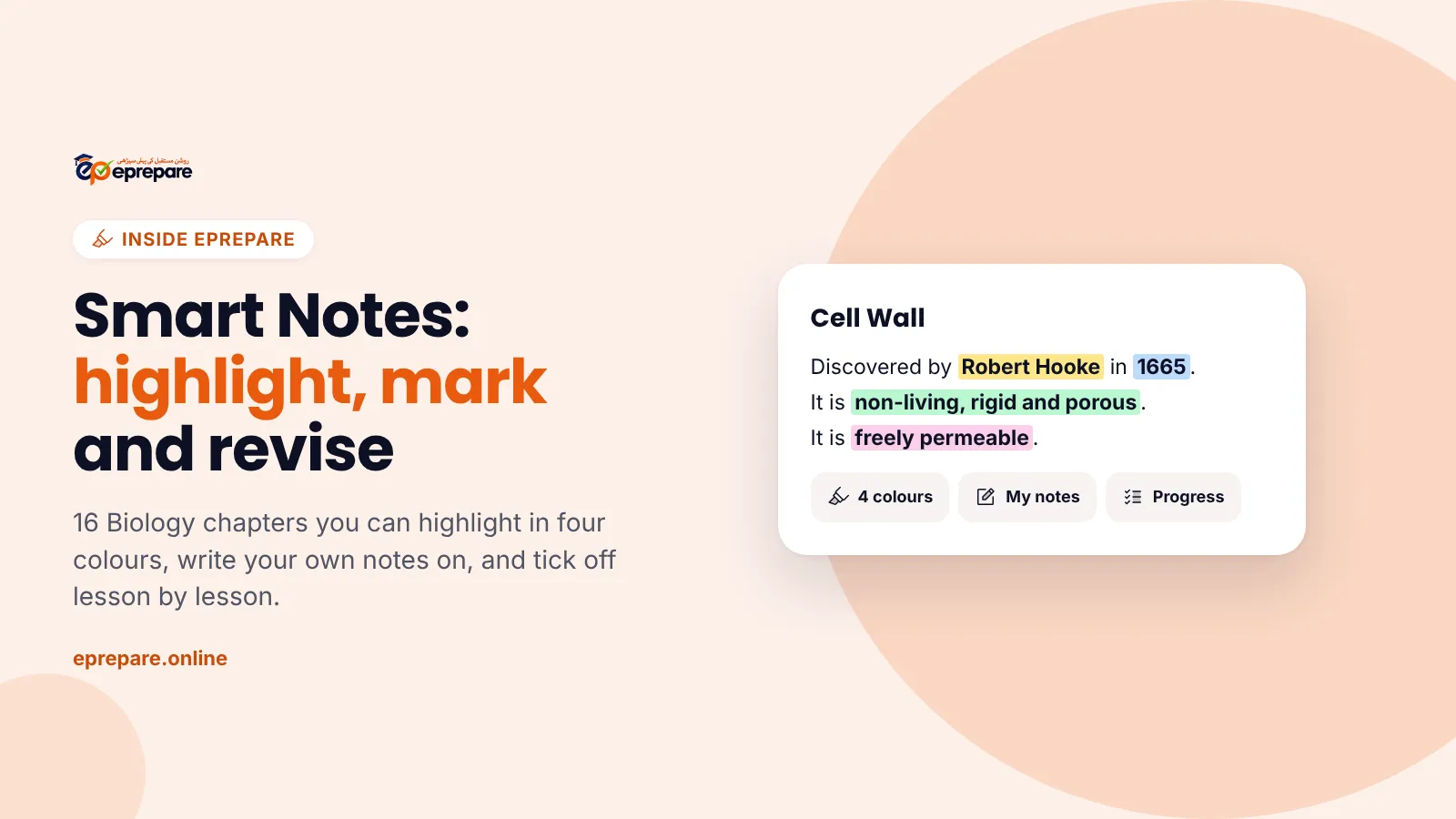
Most MDCAT students revise from notes covered in their own highlighter, until the page is so yellow that nothing stands out. Smart Notes fix that problem on screen. They are ePrepare's written Biology notes where every highlight has a meaning, your own notes sit next to the text, and the app keeps track of which lessons you have finished.
This guide shows exactly how Smart Notes work today: which chapters are there, how to highlight, mark and add pages, how progress is tracked, and a simple revision routine that ties Smart Notes to the Quiz Builder and your Wrong MCQs. Every screenshot is from the real app.
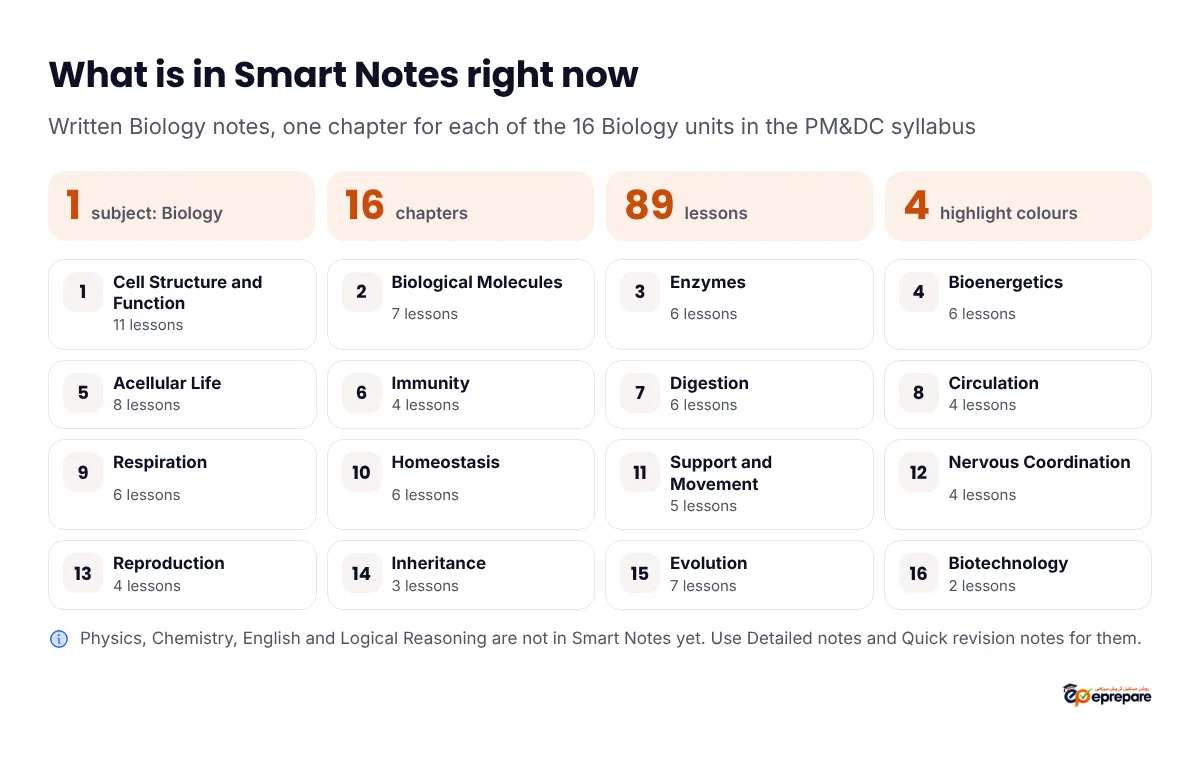
The short answer: Smart Notes are written notes you read inside the ePrepare app, under Notes > Biology notes. Right now they cover Biology only: 16 chapters and 89 lessons, one chapter for each Biology unit of the PM&DC syllabus, from Cell Structure and Function to Biotechnology. Select any words to highlight them in four colours (key point, definition, number or date, revise again), underline them, or add a note. Build your own notes pages with headings, bullets, to-dos and quotes, switch to Exam points only for the high-yield lines, and tick off each lesson as you finish it. Smart Notes come with every package.
What are Smart Notes on ePrepare?
Smart Notes are ePrepare's own written chapter notes, written from our Biology revision slides and laid out for reading on a phone. Each chapter is split into short lessons. Each lesson starts with one line on what it covers and a reading time ("Lesson 1 of 11 · 2 min read"), then points, tables and a High-yield MCQ points box at the end.
What makes them "smart" is what you can do on top of the text. Your highlights, underlines, notes and pages are saved to your account, so they are there on your phone and your laptop. The app also remembers which lesson you were on and which ones you have finished.
To find them, open Notes in the menu and pick the Biology notes tab, next to Detailed notes and Quick revision. The menu also has a direct Biology notes link under Learn.
Which chapters are available right now?
Smart Notes currently cover Biology, with one chapter for each of the 16 Biology units in the PM&DC MDCAT syllabus (the unit called "Coordination and control" in the syllabus is the chapter Nervous Coordination). Biology is also the biggest part of the paper, with 81 of the 180 MCQs. See which chapters carry the most marks in our Biology high-yield chapters guide.
| Chapter | Title | Lessons |
|---|---|---|
| 1 | Cell Structure and Function | 11 |
| 2 | Biological Molecules | 7 |
| 3 | Enzymes | 6 |
| 4 | Bioenergetics | 6 |
| 5 | Acellular Life | 8 |
| 6 | Immunity | 4 |
| 7 | Digestion | 6 |
| 8 | Circulation | 4 |
| 9 | Respiration | 6 |
| 10 | Homeostasis | 6 |
| 11 | Support and Movement | 5 |
| 12 | Nervous Coordination | 4 |
| 13 | Reproduction | 4 |
| 14 | Inheritance | 3 |
| 15 | Evolution | 7 |
| 16 | Biotechnology | 2 |
Chapter 1, Cell Structure and Function, is the longest, with 11 lessons from the Cell Wall to Prokaryotic and Eukaryotic Cells. Physics, Chemistry, English and Logical Reasoning are not in Smart Notes yet. For those subjects, use the Detailed notes and Quick revision notes, which every package also includes.
How to highlight in Smart Notes
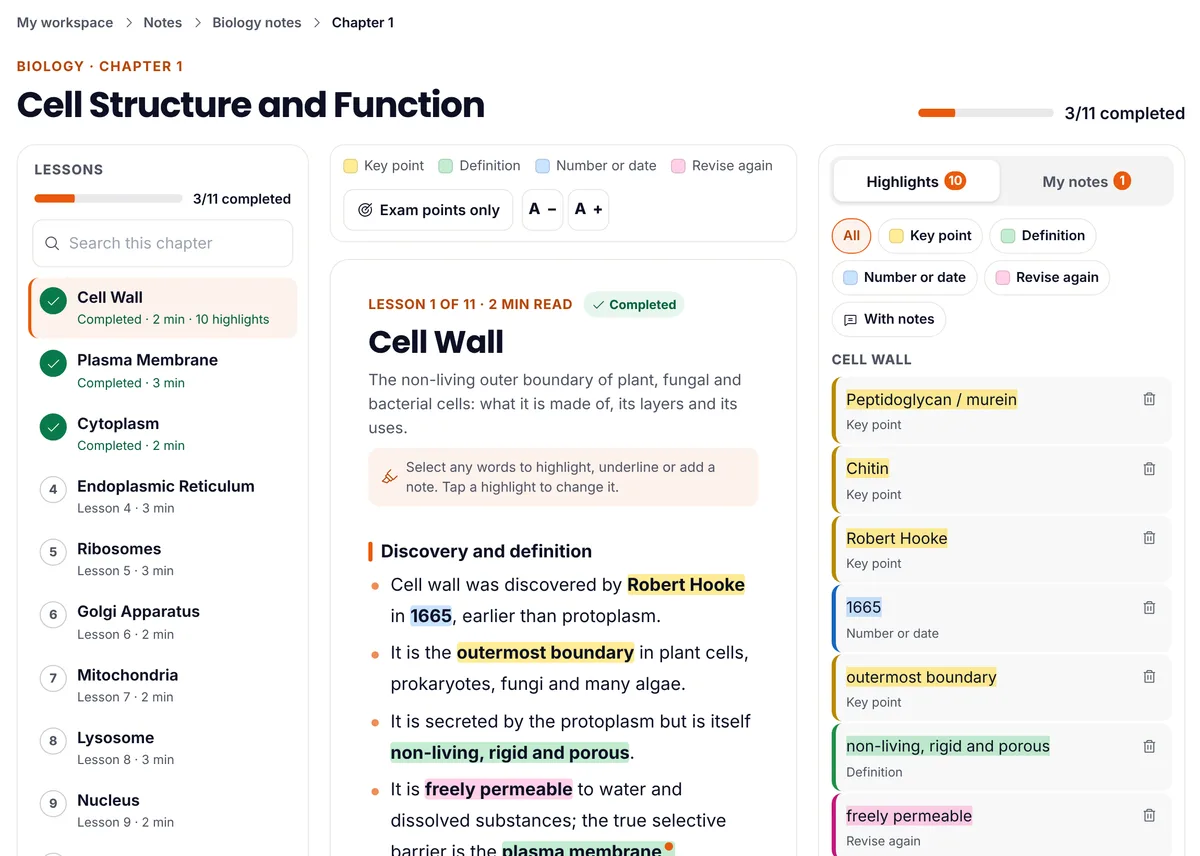
- Select the words. Press and drag on a laptop, or long-press and drag on a phone. A small bar appears next to your selection.
- Pick a colour. Tap one of the four colours. The highlight saves straight away.
- Or underline it. The underline button draws a line in your current colour instead of filling the background.
- Or highlight and add a note. The speech-bubble button highlights the text and opens a box for a note of up to 2,000 characters.
- Change it later. Tap any highlight to change its colour, switch it to an underline (or back), write a note on it, or delete it.
The app remembers the last colour you used, so if you are marking definitions through a whole lesson, you only pick green once.
How to mark: four colours, each with a meaning
Each colour has a fixed label, shown above every lesson, so a highlight still means something when you come back to it weeks later.
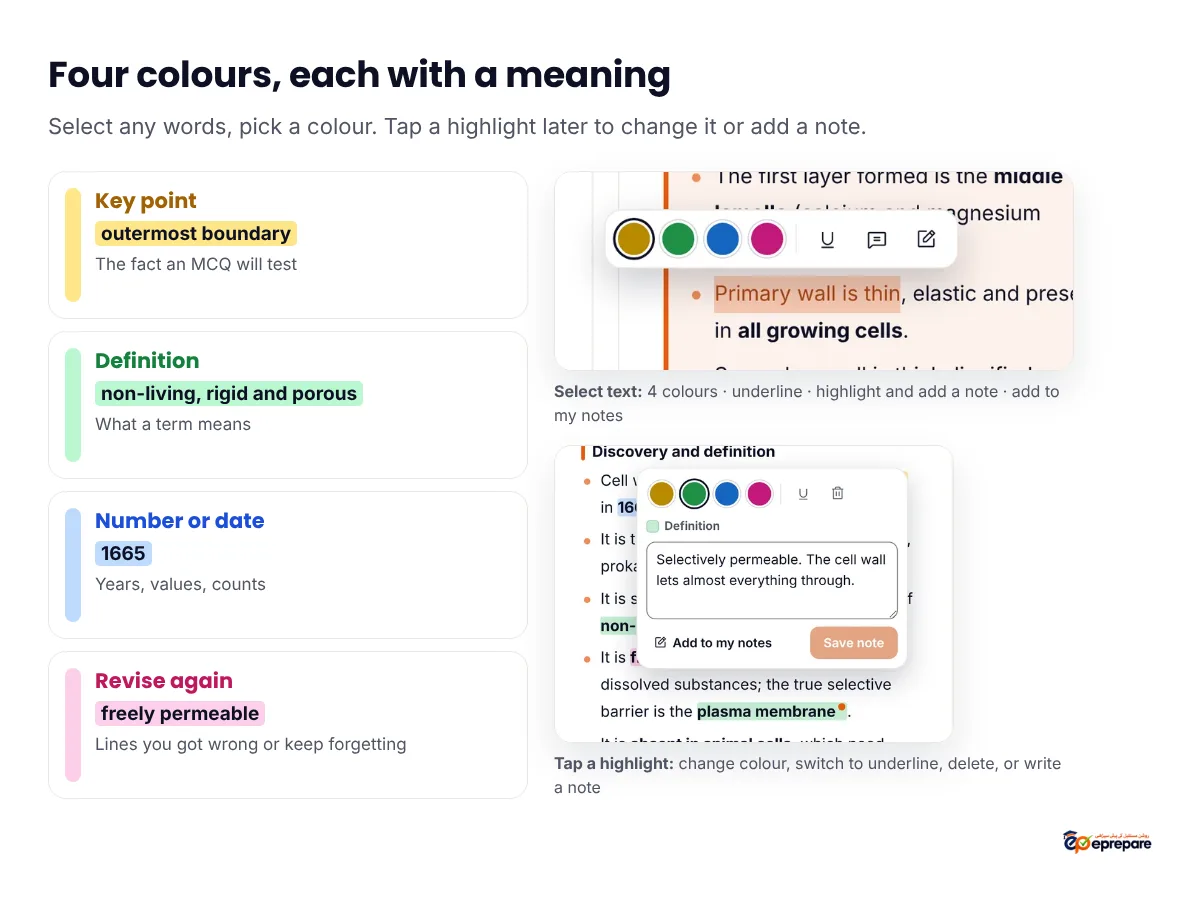
| Colour | Label in the app | Use it for |
|---|---|---|
| Yellow | Key point | The fact an MCQ is most likely to test |
| Green | Definition | What a term means, in exam words |
| Blue | Number or date | Years, values, sizes and counts (for example 1665, or 1-3 µm) |
| Pink | Revise again | Lines you got wrong in a test or keep forgetting |
A tip: highlight less than you think. One or two highlights per point is plenty. If everything is yellow, nothing is. Keep pink for lines that actually cost you a mark, so your pink list becomes your personal list of weak spots.
Your Highlights list
Every highlight also appears in the Highlights panel, grouped by lesson. Filter it by colour, or choose With notes to see only highlights you wrote a note on. Tap any item to jump straight to that line in the notes. If we ever update a lesson and the words you marked are no longer there, the highlight is kept under "No longer in the notes" instead of disappearing.
How to add your own notes pages
The My notes panel holds your own pages for the chapter. You can keep up to 30 pages per chapter, and they save to your account as you type.
![The My notes panel with a page titled Cell Wall linked to the Cell Wall lesson, containing a heading Wall vs membrane, two bullet points comparing the cell wall and the plasma membrane, two to-do items with tick boxes, and a quote from the notes marked From Cell Wall. Shortcuts typed at the start of a line: # heading, - bullet point, [] to-do with a tick box, > quote, ! callout, / menu of all block types. Up to 30 pages per chapter; copy and paste is off, use Add to my notes](/blog/smart-notes/04-my-notes.webp)
- A page for a lesson: at the end of any lesson, tap My notes on this lesson. It opens that lesson's page, or makes one with the lesson's name.
- A free page: tap New page in the My notes panel and give it a title, such as "Cell wall vs membrane".
- Write in blocks. Press Enter for a new line. Start a line with # for a heading, - for a bullet, [] for a to-do with a tick box, > for a quote or ! for a callout, or type / to pick from a menu.
- Quote the notes. Select a passage and choose Add to my notes. It lands in your open page as a quote, with a "From Cell Wall" style link that takes you back to the exact line.
Copy and paste is turned off inside the notes themselves. Add to my notes is the way to keep a passage, and it is better anyway: the quote stays linked to its source.
How to track your progress
At the end of every lesson there is a Mark complete & continue button. It ticks the lesson off and opens the next one. Changed your mind? Tap Completed to untick it.
- The lesson list shows a green tick on finished lessons, the reading time of each, and how many highlights you made in it.
- The chapter header shows a bar such as "3/11 completed".
- When you finish every lesson, the chapter says Chapter complete and offers the next chapter.
- The app reopens the lesson you were last reading, on any device.
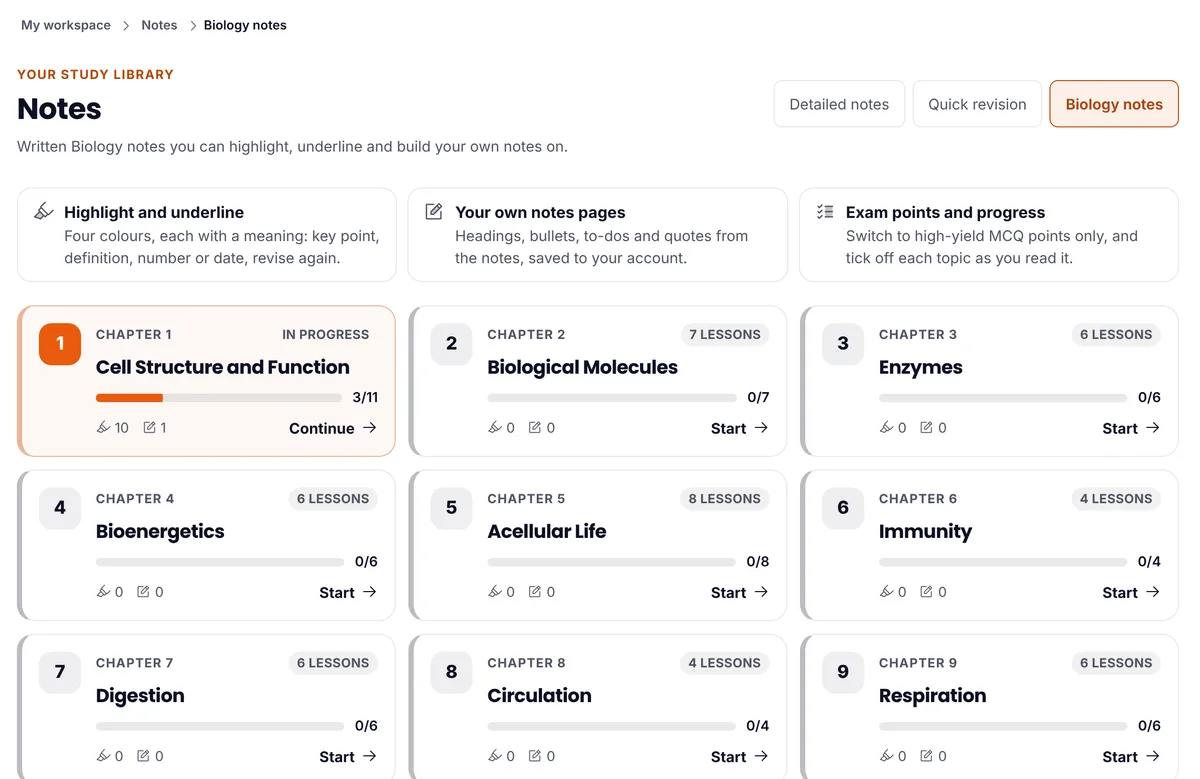
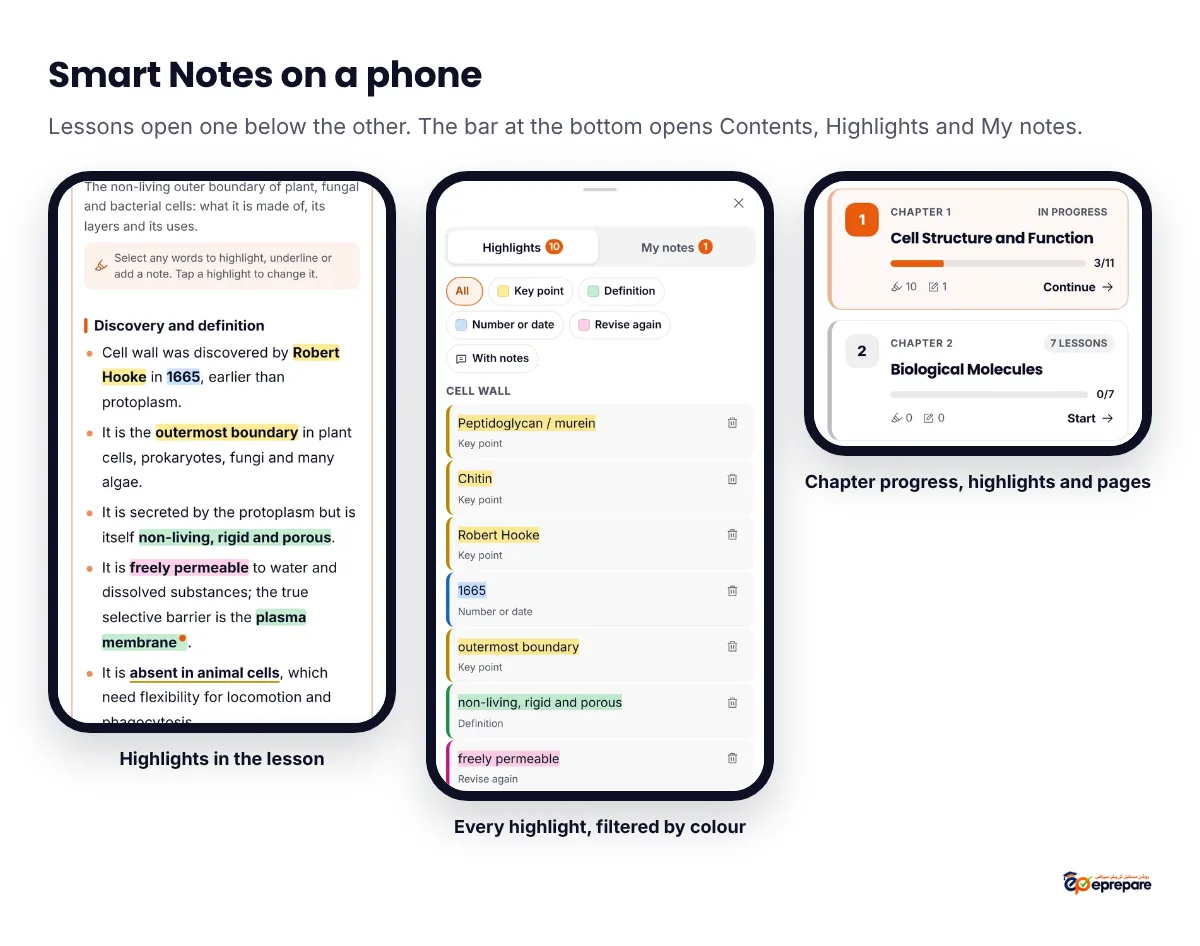
The Biology notes page shows every chapter as a card with its lessons done, your number of highlights and your number of pages. Each card's button says Start, Continue or Revise, depending on how far you are.
Exam points only, text size and search
Three small tools make revision faster:
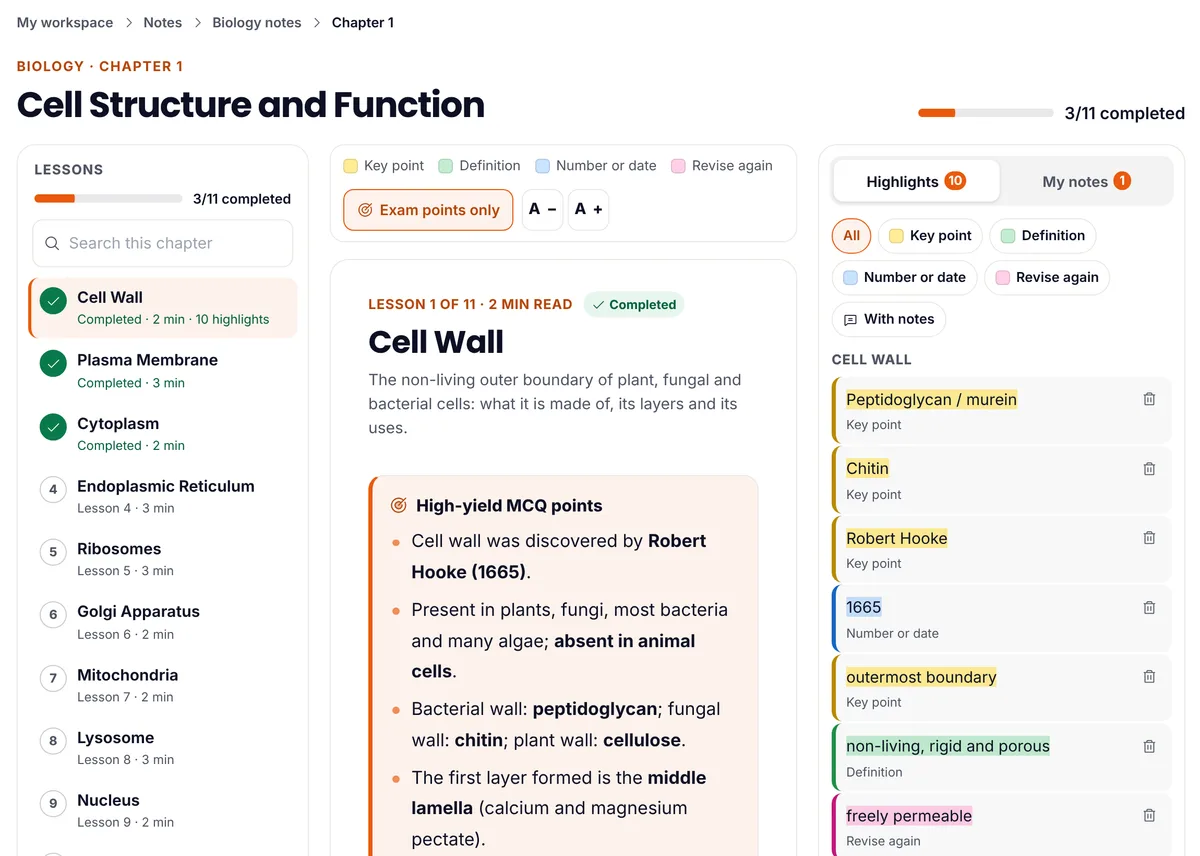
- Exam points only. One tap hides everything except each lesson's High-yield MCQ points box. It turns a chapter into a short list of the lines most likely to appear as MCQs. Perfect for the night before a test.
- Text size. The A− and A+ buttons give four sizes. Your choice is remembered on that device.
- Search this chapter. Type two or more letters in the lesson list to find every line in the chapter that matches, then tap a result to jump to it.
Smart Notes on your phone
On a phone, lessons open one below the other, like an accordion. A bar at the bottom opens Contents (the lesson list and search), Highlights and My notes as a sheet from the bottom. The colour bar appears just below your selection, so it does not clash with your phone's own copy menu.
A revision routine with Smart Notes, Quiz Builder and Wrong MCQs
Reading and highlighting feel productive, but marks come from testing yourself and fixing what you get wrong. This routine joins the three tools into one loop.
Every study day
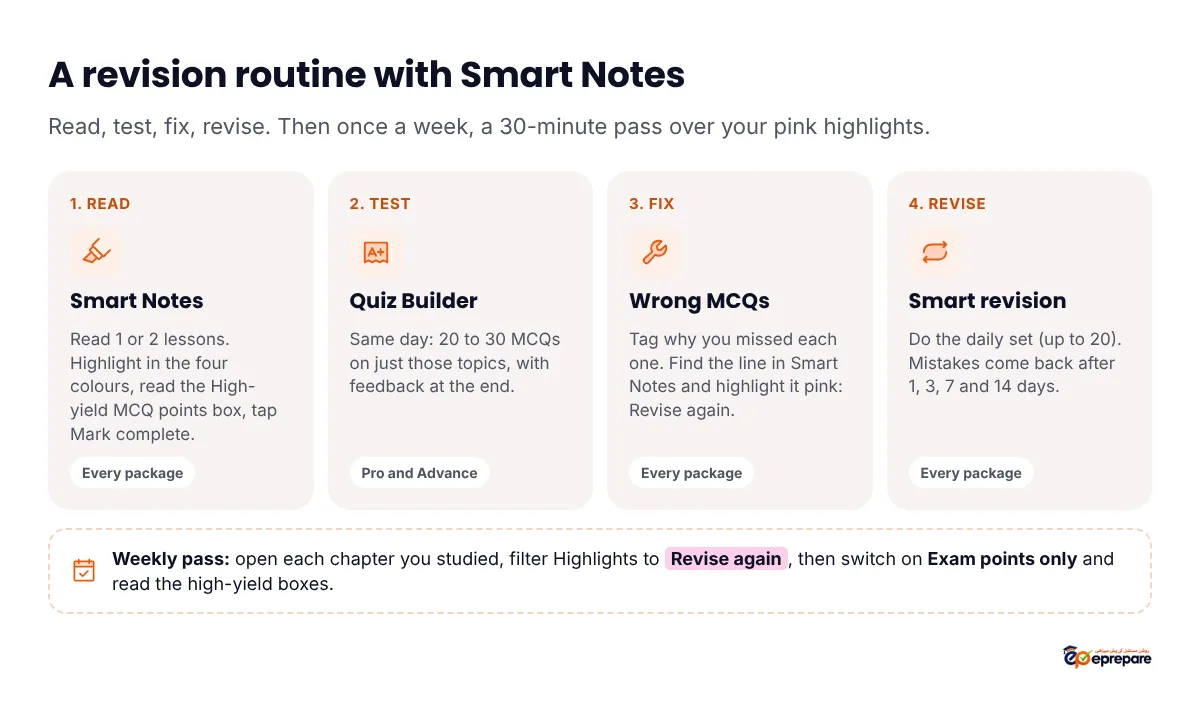
- Read (Smart Notes). One or two lessons. Highlight as you go, read the High-yield MCQ points box twice, then tap Mark complete & continue.
- Test (Quiz Builder). The same day, make a 20 to 30 MCQ test on just those topics, with feedback at the end. See how to use the Quiz Builder. On Basic or Plus, practise the same topics in the question bank or Bookline MCQs instead.
- Fix (Wrong MCQs). Every mistake is saved for you. Tag why you missed it, then find the line in Smart Notes and highlight it pink, with a short note if it helps.
- Revise (smart revision). Do the daily set of up to 20 questions. Each mistake comes back after 1, 3, 7 and 14 days. Read more in Wrong MCQs and smart revision.
Once a week
| Step | What to do | Time |
|---|---|---|
| 1 | Open each chapter you studied this week and filter Highlights to Revise again (pink). Read each line and your note. | About 15 minutes |
| 2 | Switch on Exam points only and read the high-yield boxes of those chapters. | About 15 minutes |
| 3 | Make one mixed test in the Quiz Builder from all of this week's chapters. | 30 to 45 minutes |
| 4 | Tick the to-dos on your notes pages, or add new ones for next week. | 5 minutes |
If you follow a day-by-day plan, put Smart Notes lessons into its "notes revision" slots. Our guide on making an MDCAT study plan shows how. Before full-length papers, the same pink lists are a quick way to warm up; see the ePrepare FLP Series guide for how to review a paper with them.
Smart Notes, Detailed notes and Quick revision notes
All three sit under Notes and come with every package. They do different jobs.
| Notes | Subjects | Best for |
|---|---|---|
| Smart Notes (Biology notes) | Biology, 16 chapters | Reading on your phone with highlights, your own pages and progress tracking |
| Detailed notes | Every subject | Learning a chapter properly the first time |
| Quick revision notes | Every subject | Going over many chapters fast when the exam is close |
See everything else in your account in ePrepare features and benefits.
Frequently asked questions
Which ePrepare package includes Smart Notes?
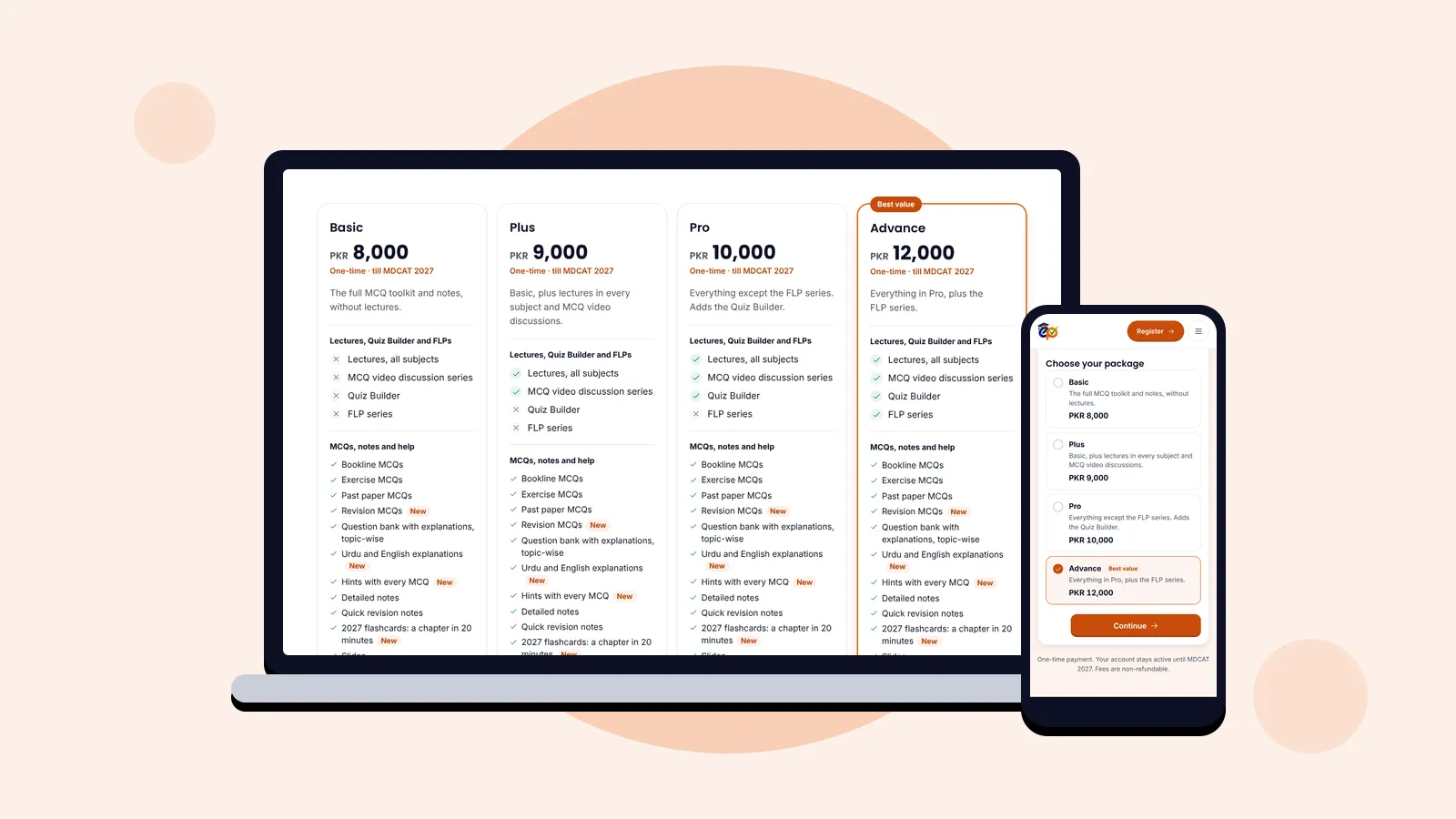
Every package, from Basic (PKR 8,000) to Advance (PKR 12,000). Compare them in our packages guide.
Are Smart Notes available for Physics and Chemistry?
Not yet. Smart Notes currently cover Biology only, in 16 chapters. For Physics, Chemistry, English and Logical Reasoning, use the Detailed notes and Quick revision notes.
Do my highlights show on both my phone and my laptop?
Yes. Highlights, notes on highlights, notes pages and lesson progress are saved to your account. Only the text size is remembered per device.
Can I copy or download Smart Notes?
No. Copying is turned off inside the notes. Use Add to my notes to keep a passage as a quote in your own notes page, linked back to its line.
How do I remove a highlight?
Tap the highlight and press the bin icon, or select the text again and press the eraser. You can also delete it from the Highlights list.
How many notes pages can I make?
Up to 30 pages for each chapter, with as many headings, bullets, to-dos and quotes as you need.
What does "Exam points only" do?
It hides everything except each lesson's High-yield MCQ points box, so you can revise a whole chapter's most testable lines in a few minutes. Tap it again to see the full notes.
Where are Smart Notes in the app?
Open Notes in the menu and choose the Biology notes tab, or use the Biology notes link under Learn.
Start with Chapter 1 today
Open Cell Structure and Function, read the Cell Wall lesson, and try the four colours on it. It takes two minutes, and your highlights will be waiting for you on revision day. New to ePrepare? Register here, or compare the packages first. Every one includes Smart Notes.
Sources: the 16 Biology units and the 81 Biology MCQs out of 180 are from the PM&DC Uniform Curriculum for MDCAT (PDF, published on Khyber Medical University's site). Chapter and lesson counts, features and package details are from the ePrepare app as it is today.